 SARO Lab

NABI VIEW
Photos, comics, and AI-generated images
Browse and organize images quickly and easily.
Supported formats
- jpg
- jpeg
- jfif
- png
- apng
- gif
- webp
- bmp
- tif
- tiff
- avif
- heic
- heif
- jxl
- dng
- cr2
- cr3
- nef
- arw
- raf
- svg
- ico
- tga
- qoi
- pbm
- pgm
- ppm
- pam
- exr
- hdr
- dds
- ff
Supported languages
- English
- 한국어
- 日本語
- 简体中文
- 繁體中文
- Español
- Português (Brasil)
- Português (Portugal)
- Français
- Deutsch
- Русский
- العربية
- हिन्दी
- Bahasa Indonesia
- Italiano
- Tiếng Việt
- Türkçe
- ไทย
- Polski
- Українська
- فارسی
- Nederlands
- বাংলা
- Bahasa Melayu
- Română
- Čeština
- Ελληνικά
- Magyar
- Svenska
- தமிழ்
- اردو
- עברית
01Two-page view and reading direction
Enable two-page view on a landscape screen to display tall images, such as book pages, side by side. Choose whether to read from left to right or right to left.
Wide images are shown on their own. Two-page viewing resumes when the following images fit a side-by-side layout.
02Quick selection
Browse images one by one, check the ones you need, then move the selected files to another folder or send them to the trash together. Selected thumbnails show a check mark.
Press Space to select or deselect the current image. Shift + → toggles its selection and advances to the next image, so you can quickly sort images using only the keyboard.
Default shortcuts
- Previous / next imageBrowse images without changing their selection.
- ← / →orA / D
- Check or uncheck imagesSelect the current image; press again to deselect it.
- Space
- Check or uncheck, then go to nextToggle the current image's selection, then go to the next image.
- Shift + →orShift + D
- Check or uncheck, then go to previousToggle the current image's selection, then go to the previous image.
- Shift + ←orShift + A
- Move to another folderChoose a destination folder or a recent destination in the move dialog.
- M
- Move to trashSend the selected files to the trash.
- DeleteorBackspaceorCtrl + E
- Restore from trashRestore files sent to the trash from the app, starting with the most recent operation.
- Ctrl + Z
On macOS, use ⌘ (Command) instead of Ctrl for Ctrl + E and Ctrl + Z.All shortcuts can be changed in settings.
- Move and trash actions apply to selected files. If nothing is selected, they apply to the currently displayed image or images.
- In two-page view, both displayed images are selected together. Press again when both are selected to deselect them together.
- Quick selection is unavailable in random order. If any images are selected, the app asks for confirmation before clearing the selection and switching to random order.
03Rename files in one go
Choose “Normalize names” from the menu to rename all images open in the current folder. Use the folder name followed by sequential numbers, with your choice of digit count.
You can also find and replace shared text across file names. Both methods preserve the original file extensions.
Review the preview, then click “Apply changes” at the bottom of the window to rename the files. This works with local folder files, not images inside archives.
04Recent items & bookmarks
Find recently opened folders, archives, and your bookmarks in one place, and reopen them with a click.
Press B to bookmark the current folder or archive with the image you are viewing as its starting page. You can rename or remove bookmarks.
05Open archives directly (ZIP, 7z)
Open ZIP and 7z archives like folders, without extracting them first.
Password-protected archives open once you enter the password. Archives are opened read-only, so the images inside are never moved or deleted.
06Slideshow
Start a slideshow with the play button or Q and images advance automatically at the interval you set.
You can shorten or lengthen the interval in 0.1-second steps during playback.
Default shortcuts
- Start / stopAdvance automatically at your own pace
- Q
- Shorten interval by 0.1 seconds
- ,
- Lengthen interval by 0.1 seconds
- .
All shortcuts can be changed in settings.
07Mouse actions
Choose actions for the scroll wheel, right-click, middle-click, double-click, back and forward buttons, and dragging.
For example, turn pages with the wheel and zoom with Ctrl + wheel (⌘ + wheel on macOS), or toggle full screen with a double-click.
08Settings and language support
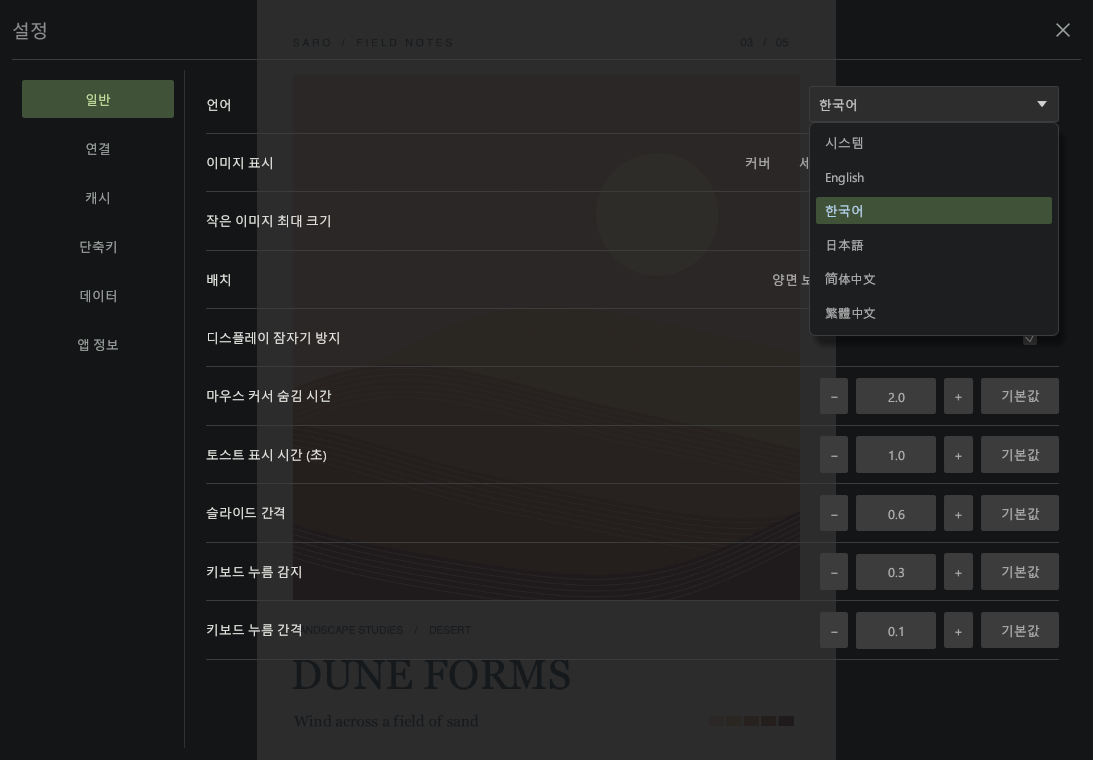
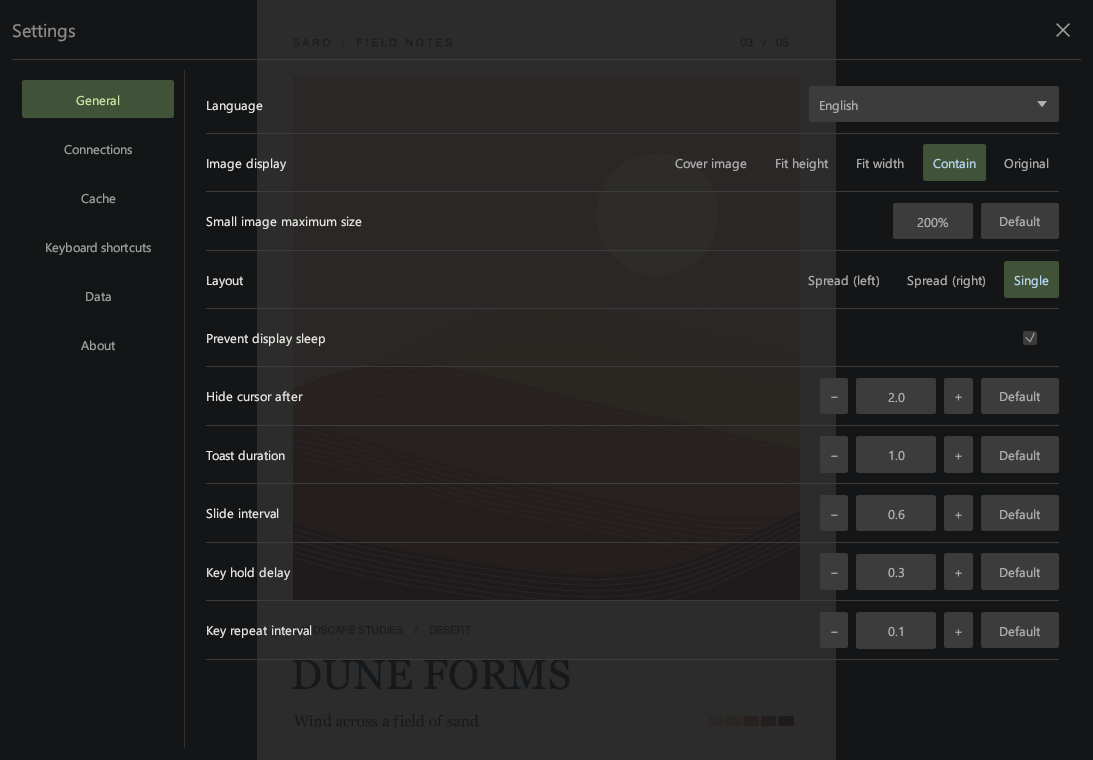
Customize image display, slideshows, and shortcuts, and use the viewer in a familiar language.
Hover over or tap a feature to see its description and default shortcuts.
All shortcuts can be changed in settings.
09Image information
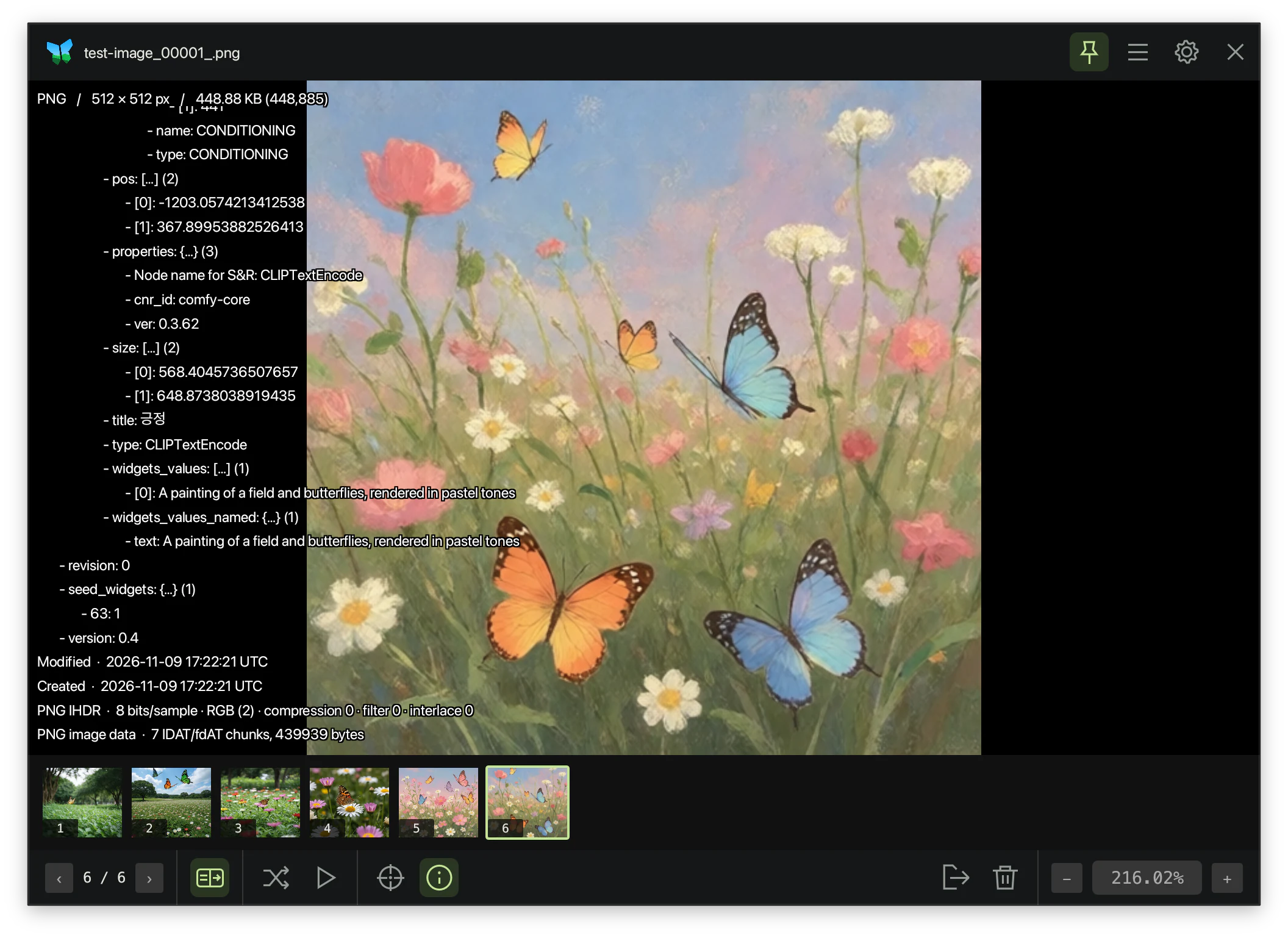
Check the file format, resolution, file size, and embedded metadata while viewing an image.
If an AI-generated image from ComfyUI or a similar tool contains a prompt or workflow, expand the saved information to see the prompts and settings used to create it.
Default shortcuts
- Show / hide image informationShow information about the current image; press again to close it.
- TaborI
All shortcuts can be changed in settings.